Hi folks,
Just thought I'd let you know that I have a sale going at my store from today through Friday April 10.

Thanks!
John


Hi folks,
Just thought I'd let you know that I have a sale going at my store from today through Friday April 10.
Thanks!
John


I haven't posted much lately because I moved my posting to Patreon.
But here is some stuff I have been drawing.
I sometimes take my breakfast sketches and render 'em up in Photoshop.


BTW, if you don't already know you can own some original drawings or posters or apparel by checking out my store.

Once I have all my shapes filled with flat color I will want to add some gradients to some of the shapes.
I make my gradients subtle by using 2 colors that are closely related but usually not the same hue or saturation. This gives the shapes a slight illusion of color depth rather than having only cold flat colors.
For example on the muzzle area of the bear I pick the color I used for the flat fill and for the other color I slide the cursor on the color selector slightly up or down, left or right to find a color that looks just a bit different than the first color.


Once selected I click the gradient tool and choose the type of gradient I want. In this case I chose the linear gradient on the left.

I then drag my cursor across the shape in whatever direction I'd like my gradient to appear.
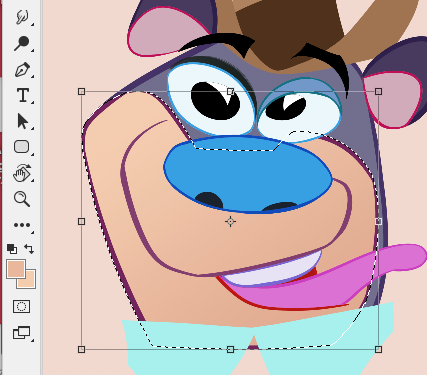

Now the image is ready for the final step - rendering shading and textures using the Photoshop brushes.
This is a follow-up to these 2 posts below:

A few months ago a Japanese clothing line approached me about illustrating some shirts and sending some art to display at one of their stores in Japan.


There still are a few shirts available:
https://baycrews.jp/item/detail/journalstandard/cutsew/23071600931010
They invited me to a special meet and greet event that happened on March 28 2023.
I was happily surprised to see how many Japanese fans Ren and Stimpy had. The event was packed for the 3 hours it took place.
Many of the fans were cartoonists themselves and some darn good ones.
These 2 pages were drawn by a 16 year old lad named Uni. He spoke perfect English and was extremely enthusiastic about becoming an animator. He draws better than I did when I was 16! I'm sure he'll have a great career. To see more of his work - @uni1015m


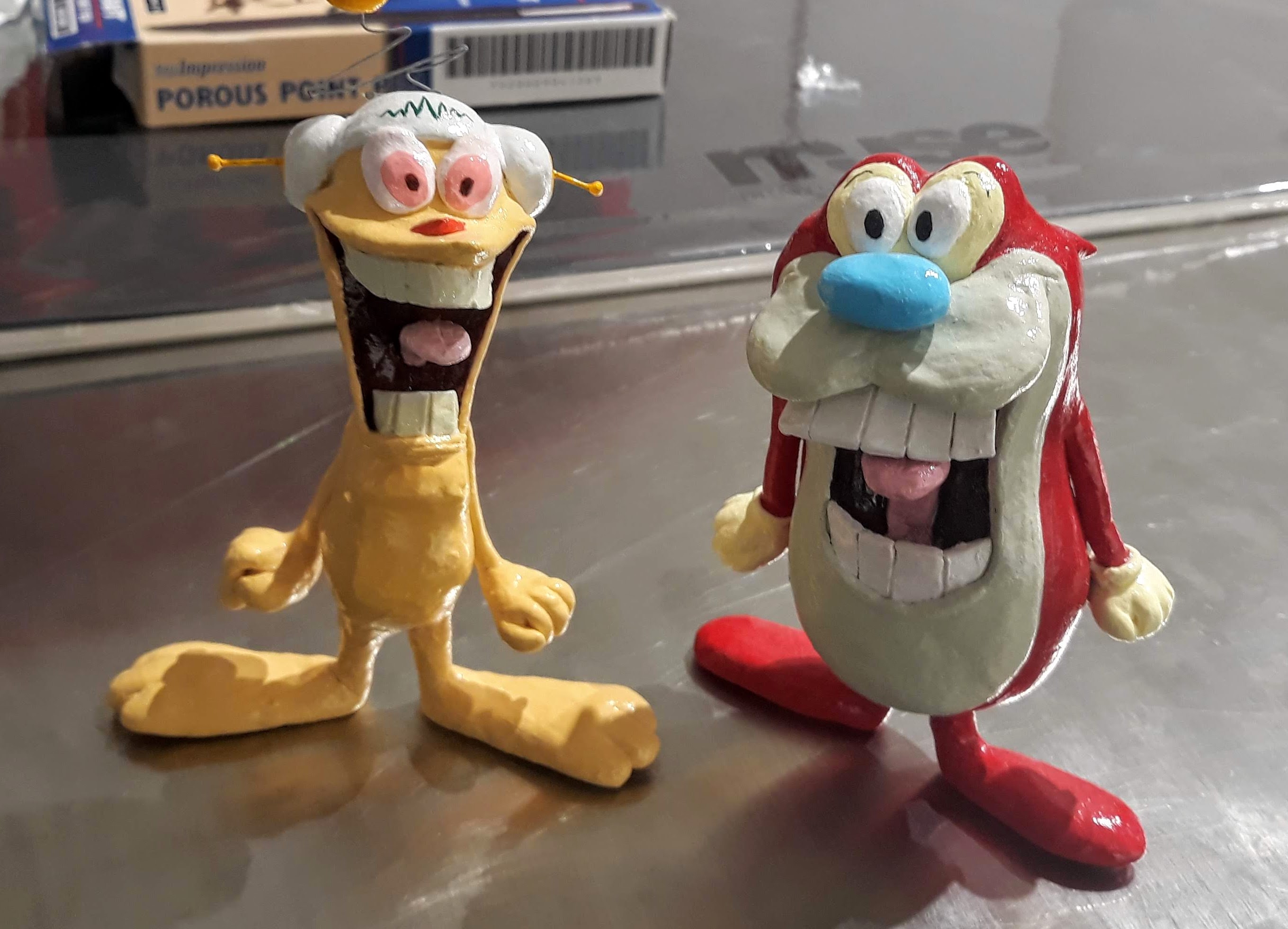
Rurumu is another cartoonist I met and she brought a big suitcase to show off some of her Ren and Stimpy merchandise.

She posted a diorama she made of the opening scene from Stimpy's Invention on Instagram a while ago. She sculpted Ren, Stimpy and the mounted fish and built the room around them. Amazing.


Mina was there and she had a really good sketchbook of cartoons she drew. Here's her design for a holographic card she gave me.


I met another cartoonist who gave his name as OPMM.


He has an exhibition going on now as well. I especially like his Rat Fink inspired figures with the erotic ears.

While I was in Tokyo I visited the Odd Job animation studio. They gave me a nice tour of their facility and were very proud of their own collection of vintage toys.


There was a lot of gift giving and receiving during the week and here is a pic of some of the treats I brought back with me.

If you happen to be in Tokyo my exhibition is still going on until this Sunday April 9 2023.
The address is:
Journal Standard Omotesando store (Cat Street)
5 Chome-25-4 Jingumae
Shibuya City, Tokyo 150-0001


Special thanks to Kishibi-san, Mami and Takayama-san and the Journal Standard crew that brought the event and collaboration together!
Once I have my drawing inked and all the different shapes organized by folders and layers I'm ready to start dropping flat colors into the shapes.
I want to get from here
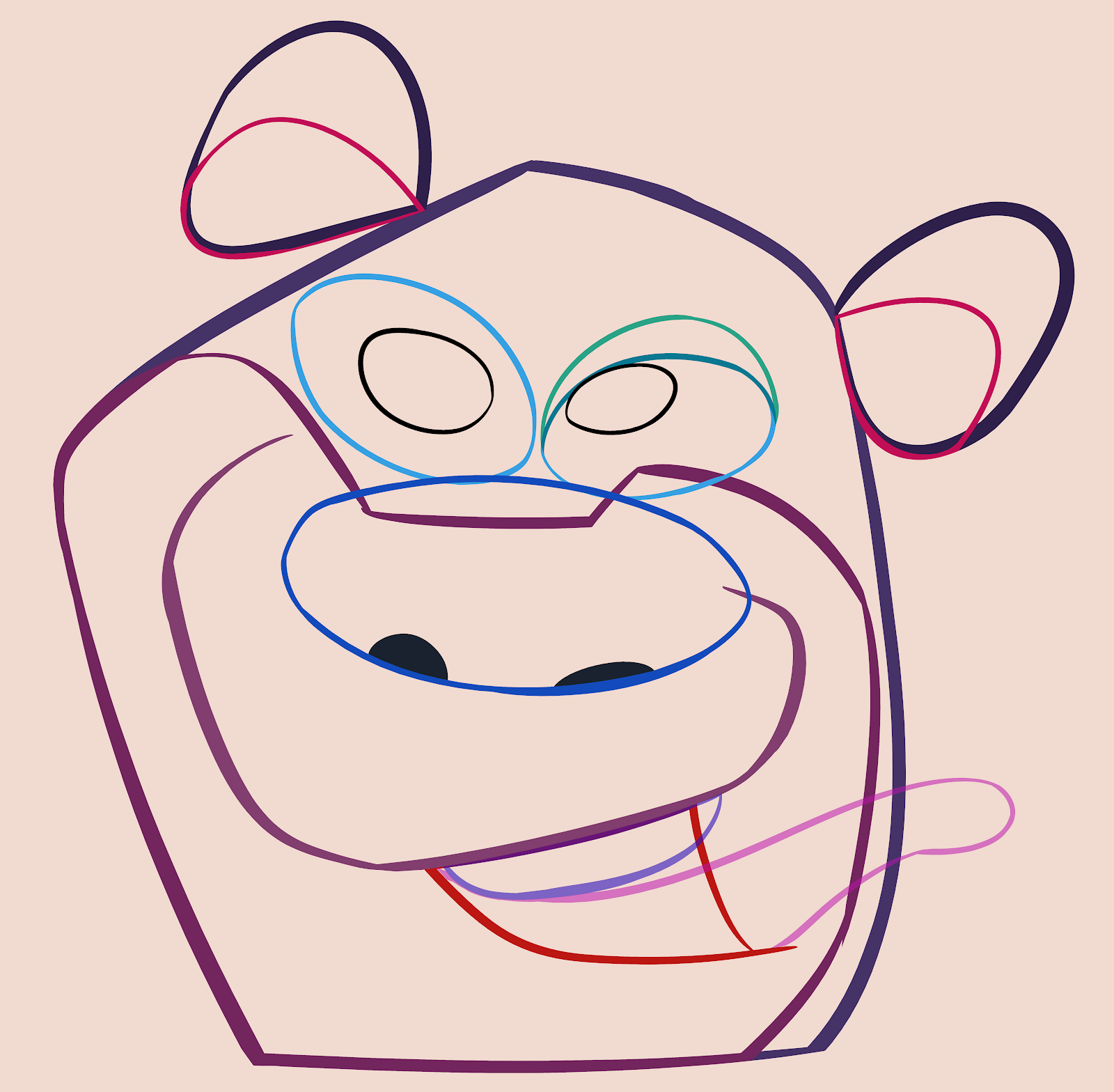
to here


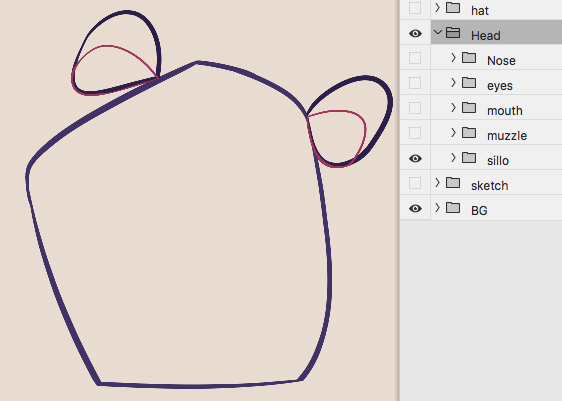
I turned off all the facial groups and am going to fill the 'sillo' area of his head. Inside the sillo folder I'll make a layer called 'fill' under the line layer that's named whatever the shape is - in this case also 'sillo' like the folder.

Now, using the magic wand tool I select the empty inside of the shape. The shimmering broken lines show the area that is selected.


Once the entire shape is selected I want to make it 1 pixel smaller all around.
I go up to the menu and drag down the 'select' menu to 'modify' and 'contract'.

Now it's ready to fill with color.
I click the color square at the bottom of the tool bar.


With the 'sillo' layer selected I then click shift-F5 and it fills the area with color.


Eventually everything will be colored but this is not how I want to final drawing to look.


